Thanks to it, from several fanpages we manage, we will make one, and all posts and comments will remain on the page we choose. Additionally, likes and check-ins from the merged pages are summed up (however, keep in mind the possibility of overlap between both groups of “likers”, so do not assume that after merging, the number of likes on the page will equal the sum of likes from both fanpages.
Conditions for Merging Facebook Pages
Before we move on to the detailed instructions, it is very important to meet several conditions without which Facebook will not allow us to start the name change process; they are:
Admin permissions for both fanpages
Although it seems quite obvious, it is worth making sure that you have admin rights on both pages. If the account is managed through Business Manager, go to settings and check if the appropriate permissions are assigned to your profile.
Similar names of Facebook pages
To ensure Facebook positively reviews our request to merge fanpages, it’s good to prepare an explanation (in case support contacts you about your request, they may ask for it). Similar and unambiguous names matching the justification for the name change will be the ideal “foundation” and are essential for a positive review.
Identical Physical Address
If you used the option to add a physical address on your fanpage (e.g., for a store or office), make sure both pages have the same address listed (regardless of whether it matches reality or not). Alternatively, you don’t have to enter any address there (Facebook doesn’t require it). The most important thing is that the address section in the page info is the same in both cases.
If you need help in merging your pages, recovering access to a hijacked fanpage, or simply want to know more about security on Facebook, join our group, where we mutually help each other with exactly these issues – without stupid jabs or malice. If needed, we will gladly help you individually too – get in contact.
Instructions for merging a Facebook fanpage
Merging a page on Facebook is very simple and shouldn’t cause you any trouble, and the entire process, including correcting information from the steps described above, shouldn’t take you more than ten minutes. To merge pages on Facebook:
- Go to the Page Management Tools subpage in the Facebook Help Center –> facebook.com/pages/merge.
- Start typing the name of the first page (for now, the order doesn’t matter – you’ll set it in the next step) and select it from the list. Do the same with the second fanpage.
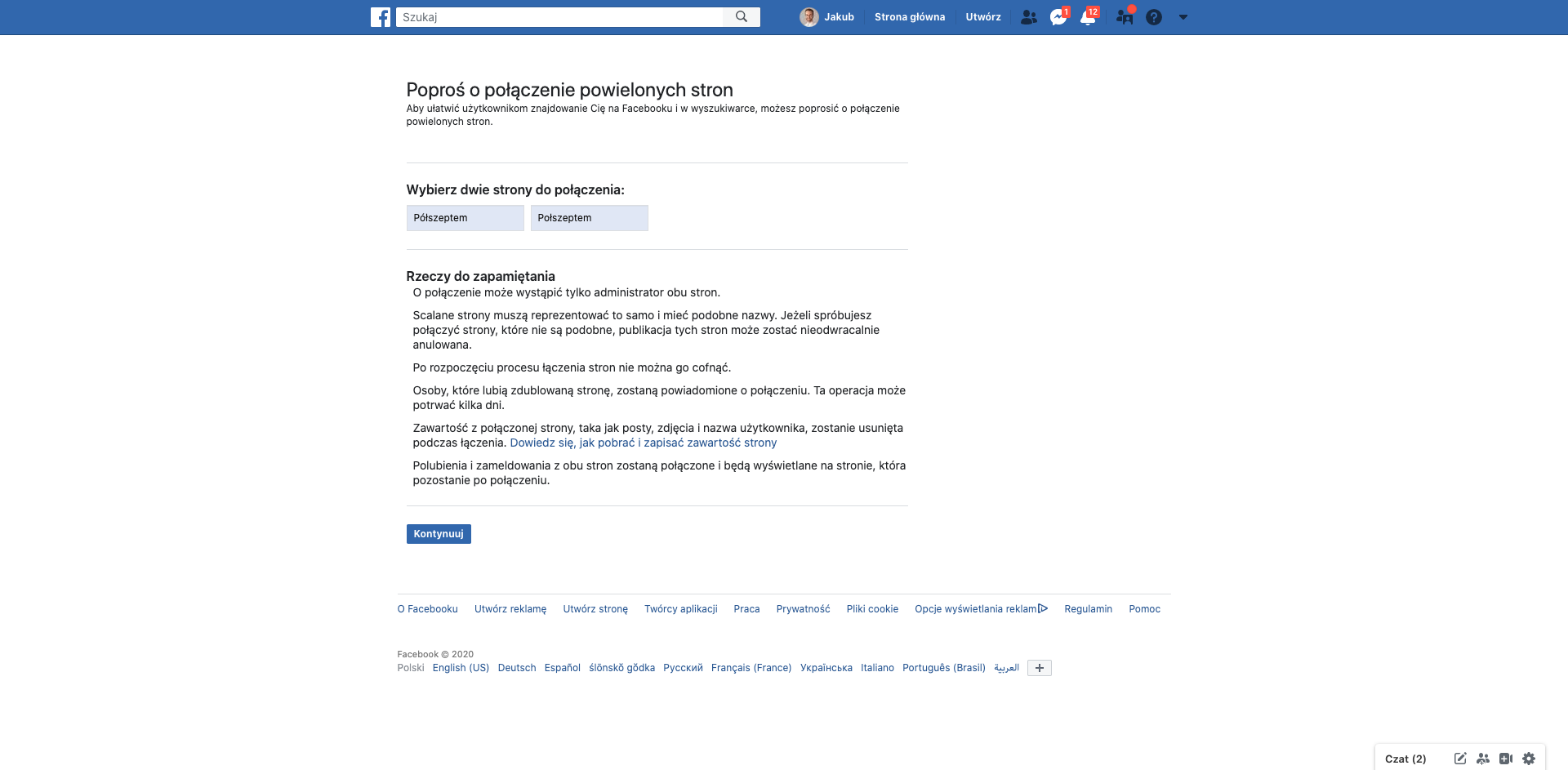
- Now select the page you want to keep (this is the page that will remain visible after merging – it will absorb the likes and check-ins from the second fanpage).

- Now confirm your choice – this is the last moment you can do it. After that, there will be no turning back. The page that Facebook shows us in the confirmation message as the first one, i.e., the page you will keep, is the fanpage that will remain visible after merging. The duplicate page is the one that will be absorbed by the previously selected fanpage, i.e., the one that will disappear (and whose likes and check-ins will be transferred to the above-selected page).
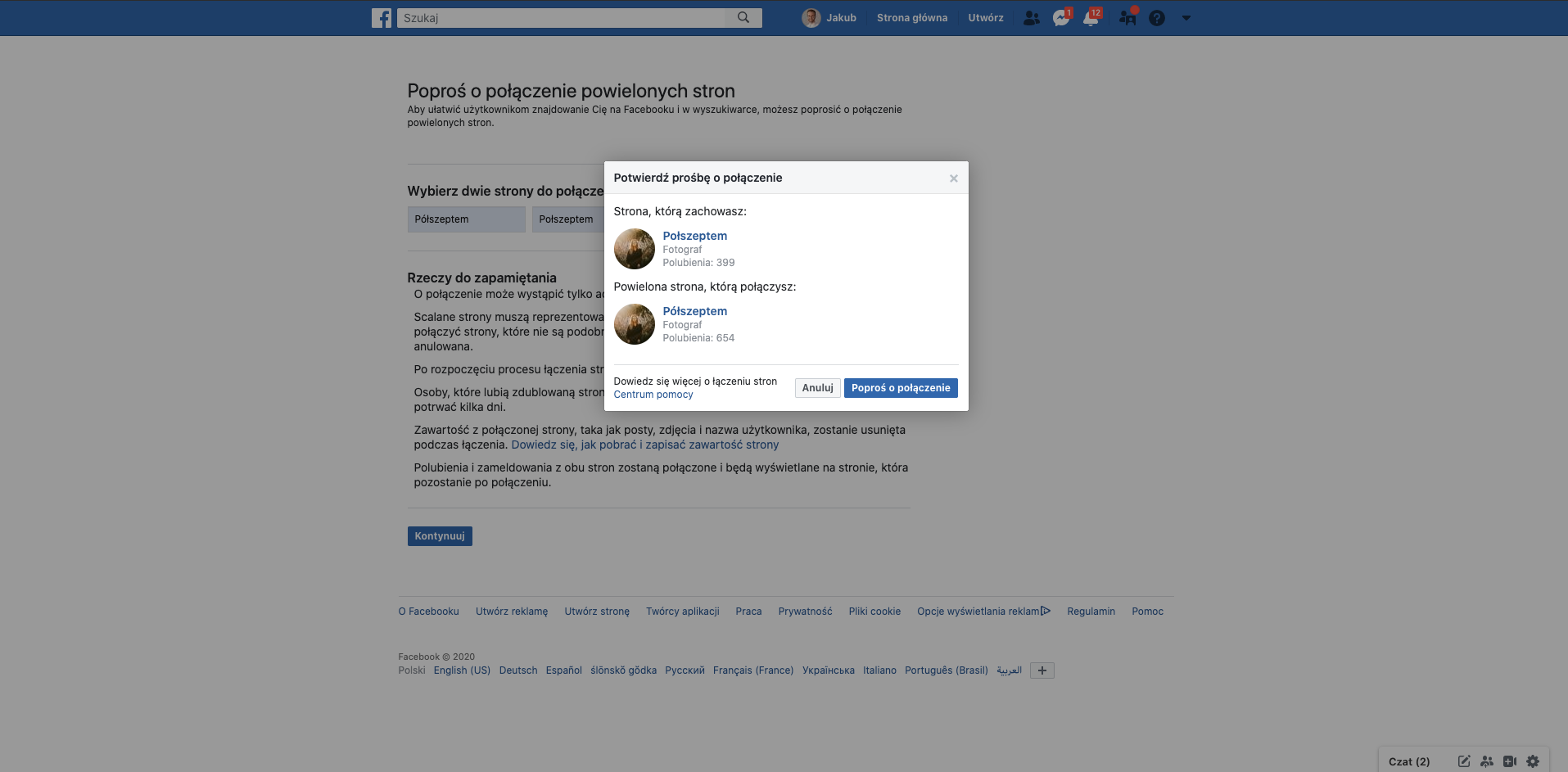
- If the information from Step 4 is correct, confidently Start Request and… done!
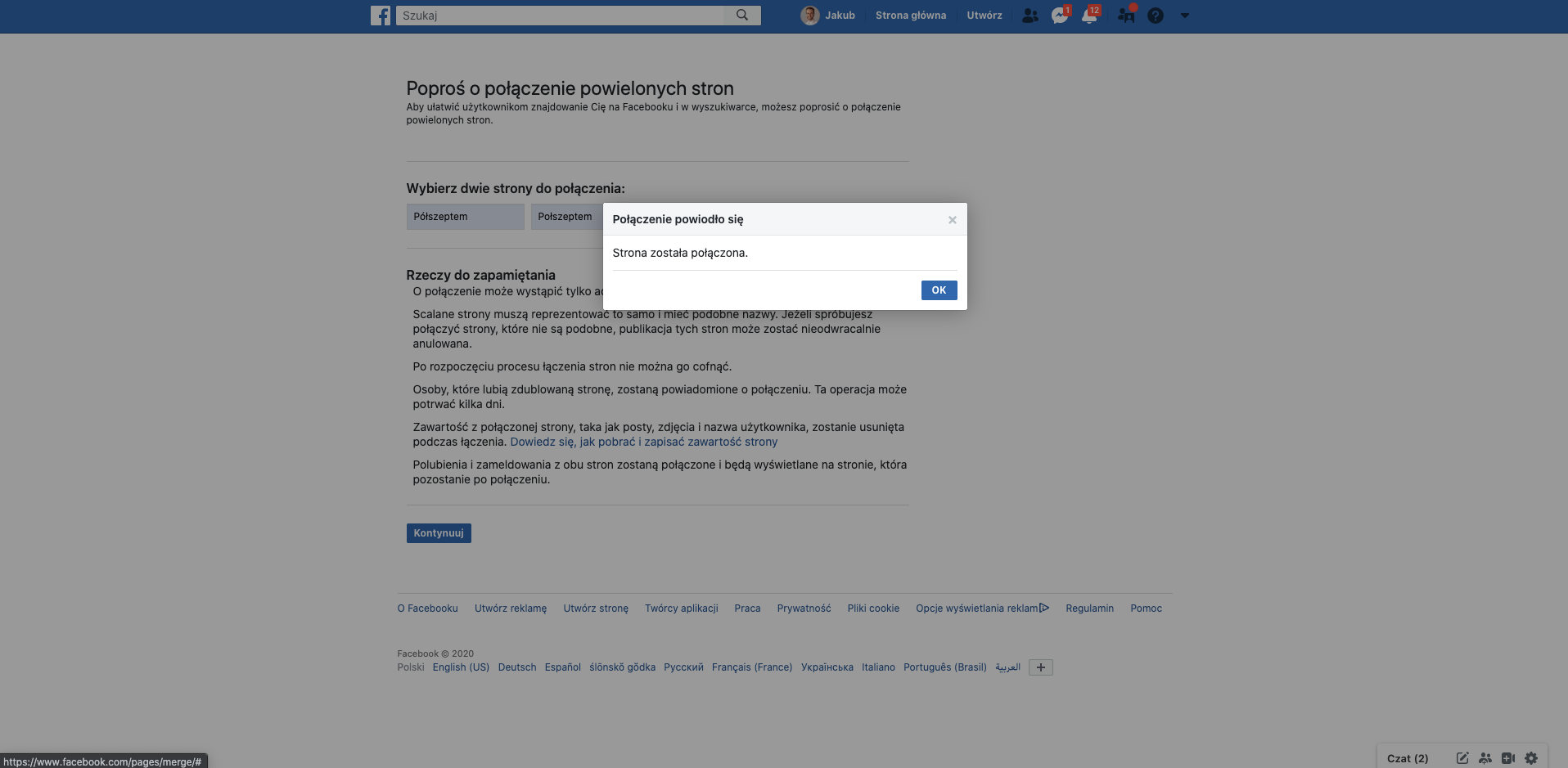
- Congratulations, your Facebook pages have been merged into one!


Sometimes Facebook refuses to merge pages. This result may come from one of the unmet conditions described at the beginning of the post. If you’re sure you meet them all, make sure your page belongs to you (as Administrator) and is not managed separately from Business Manager – if so, you’ll need to use the business tool (link similar to the above instructions, just add the word business to the page address –> business.facebook.com/pages/merge).
If that doesn’t work, don’t hesitate to contact Facebook Help Center – it is indeed a form of help available exclusively to advertisers, but it can be very useful if all other methods fail. Initially, when filling out the contact form or using the chat with a Facebook business consultant, you’ll be dealing with a bot that will try to guide you on Messenger through the identical page merging process you’ve already gone through and that didn’t work. Arm yourself with patience and answer its questions. Only this way will the bot switch you to a real live consultant who will handle you and create a ticket in your case.
We hope this article saved you time by helping you merge fanpages and focusing on communication in one place. If so, we’ll be very pleased if you share it further!
