Your campaign promoting the videos you publish has been running for some time now. Maybe you have 3 of them, maybe 10, or maybe even more. Good job! Video is a great form of communication that has really many fans – you know yourself how many people use YouTube or lately TikTok.
So you’re promoting your videos, but you’ve noticed that the results are weakening, and the advertising is becoming more and more expensive. Why? Perhaps your audience has started to feel oversaturated with your videos and ignores the next ones, even completely new video ads.
What should you do?
When Optimizing your FB Ads campaign, it’s worth excluding the group of recipients who have recently been exposed to your videos. They probably won’t be interested in the next video anymore.
How to create a custom audience?
Open Ads Manager: in one tab your video campaign, in the second click on the menu (the hamburger icon titled “All tools”), scroll down until you see the “Audiences” tab.
A card with all the audience groups you’ve already saved will appear. You can filter, select, edit, share, and of course delete them. But this article is about something completely different.

Do you need training?
Check out our online courses or schedule a consultation, during which – in a group or one-on-one meeting – we will show you how to create effective advertising campaigns and manage the Meta Ads Manager.
Create a new audience group. Click the distincly blue button “Create audience group” and select “Custom audiences”.
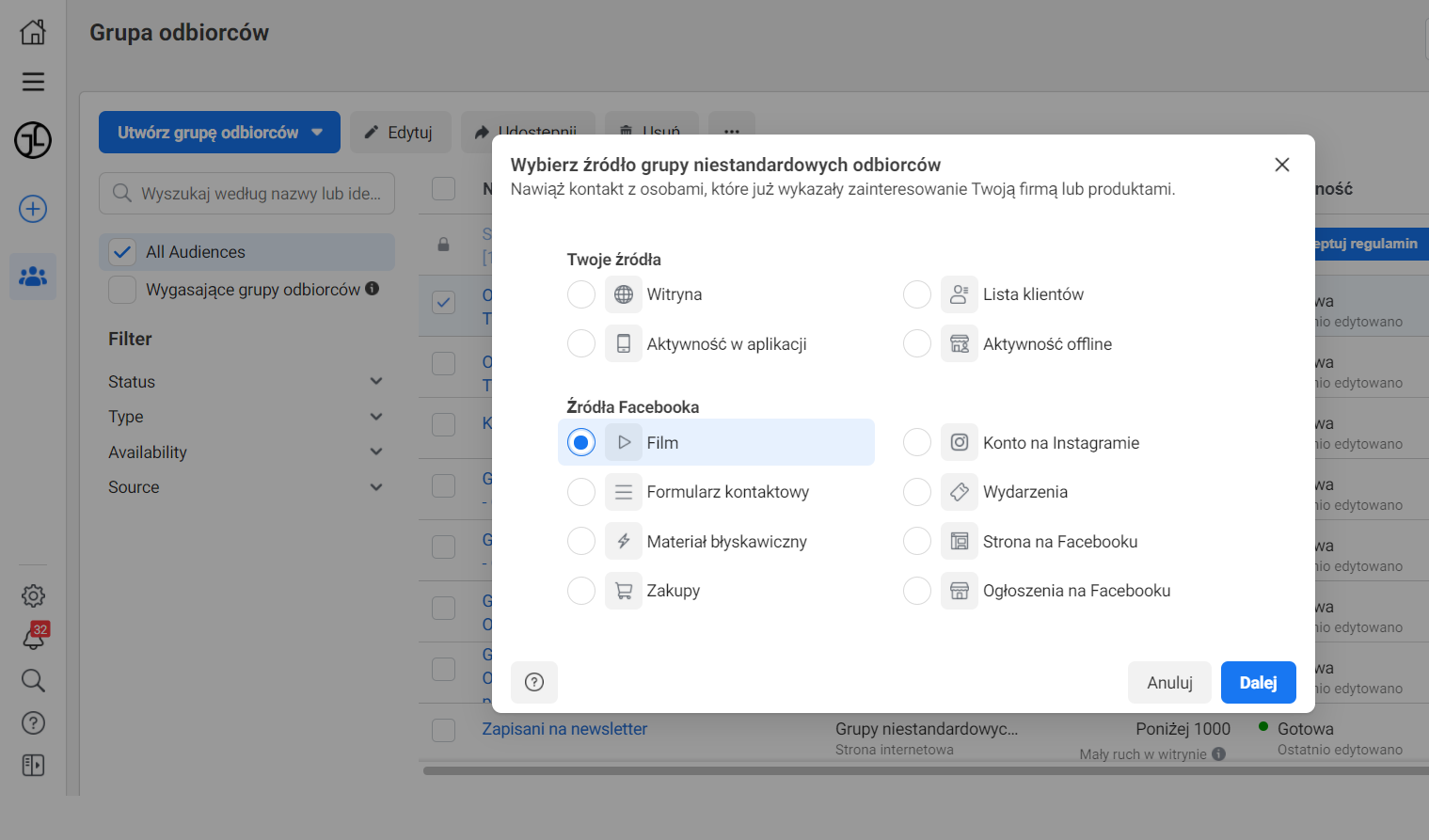
A new panel will appear where you will see a lot of interesting sources for creating audience groups (but more about that another time!). No matter how tempting they may be – select “Facebook source: Video”. Confirm your choice with the “Next” button.
You’ll find yourself in the window titled: “Create a custom audience for video activity”. Here, give your new audience group a name – one that fully associates it with their video activity, e.g., “Watched Ask a Lawyer #26 video”.
In the description, enter a short characteristic of the group, for example “Watched 50% of the video”, and in the “Activity” field, select the video activity for the chosen video that you want to exclude. We will choose the setting “People who watched 50% of the video” here, because this ensures they are the most interested in the topic. In your case, it may be different – it all depends on the campaign goal and video length.
How to select the video whose viewers you want to exclude?
Be careful! Don’t miss the blue text! After selecting the activity, it will appear in the same field on the right side: “Select videos”. This is an important link, so click it and check the video whose recipients you would like to exclude. Confirm that it’s the video you meant. You’ll return to the custom audience settings.

Take a look at the settings and if everything is correct, confirm with the blue “Create audience” button.
This way you’ve created a group of people who watched 50% of the video you selected. The group will be saved and ready to use in the campaign as soon as you click DONE in the window that just appeared with the message “Custom audience created”. Phew.
How to edit an ad set to exclude the created audience group?
Now return to your ad campaign settings in Ads Manager. Select the chosen campaign, go to ad sets, and edit the selected one or all (depending on which set you want to exclude viewers of your chosen video from).
You’re in ad set editing. In the “Custom audiences” field, you can select the saved group or leave it blank to target the set later by interests.
Importantly, below you have the “EXCLUDE people who are in at least ONE of the following groups” field. Click “Search existing audiences” and find the audience group you just set up of people who watched 50% of your selected video.

When you start typing the group name, Facebook will suggest groups with matching at the start names. This will make it easier for you to find the right one.
When you hover over any group, it will display more information about it, such as its size, full name, type (Activity – video), and the description you created.
You can prepare many audience groups this way, for each video published on your fanpage: video #1, video #2, #3, #4, etc. And then sequentially exclude them in the ad set settings. This way, you’ll direct the ad to the group you selected (via Interests, Behaviors, or previously saved) without people who watched any of the videos posted on your feed.
It’s entirely up to you which videos’ viewers you want to exclude. You can exclude viewers of all videos, or only selected ones, e.g., allowing viewers of the first published videos to see the ad you’re setting up now. But more on that next time.
I hope your campaigns will now be even more effective!
